The short answer.
Put the laptop on a stable hard surface, leave its vents clear and check what is using the processor or graphics hardware. If heat comes with repeated shutdowns, a failing fan or a swollen battery, stop routine troubleshooting and arrange service.
Decide whether warmth is a problem
A laptop may feel warm during a game, video export or software update because its components are doing more work. Fan noise can rise for the same reason. The important questions are whether the heat is new for the same task, whether performance drops sharply, and whether the computer shuts down, freezes or shows physical changes. A number from an unfamiliar sensor app is not a diagnosis by itself.
Write down when the issue appears: on battery or mains power, in a particular app, after sleep, or only on a soft surface. Note the room conditions and whether the air outlet is blocked. This pattern is more useful to a technician than a single temperature reading. Compare with your model’s manual and diagnostic tools, because acceptable readings and fan behavior vary across machines.
Apple’s Mac temperature guidance explains that warmth can be normal and recommends a stable ventilated surface. Dell’s overheating guide distinguishes ventilation, workload and hardware causes. Use the instructions for your own make and model where they differ.
Start with the desk and vent path
Move the laptop to a stable hard surface such as a desk or suitable tray. Bedding, a sofa cushion or a lap can block an underside intake or trap warm air around the case. Keep the exhaust side clear of a wall, books or another device. If a cover or sleeve remains on while the laptop is open, remove it and test again.
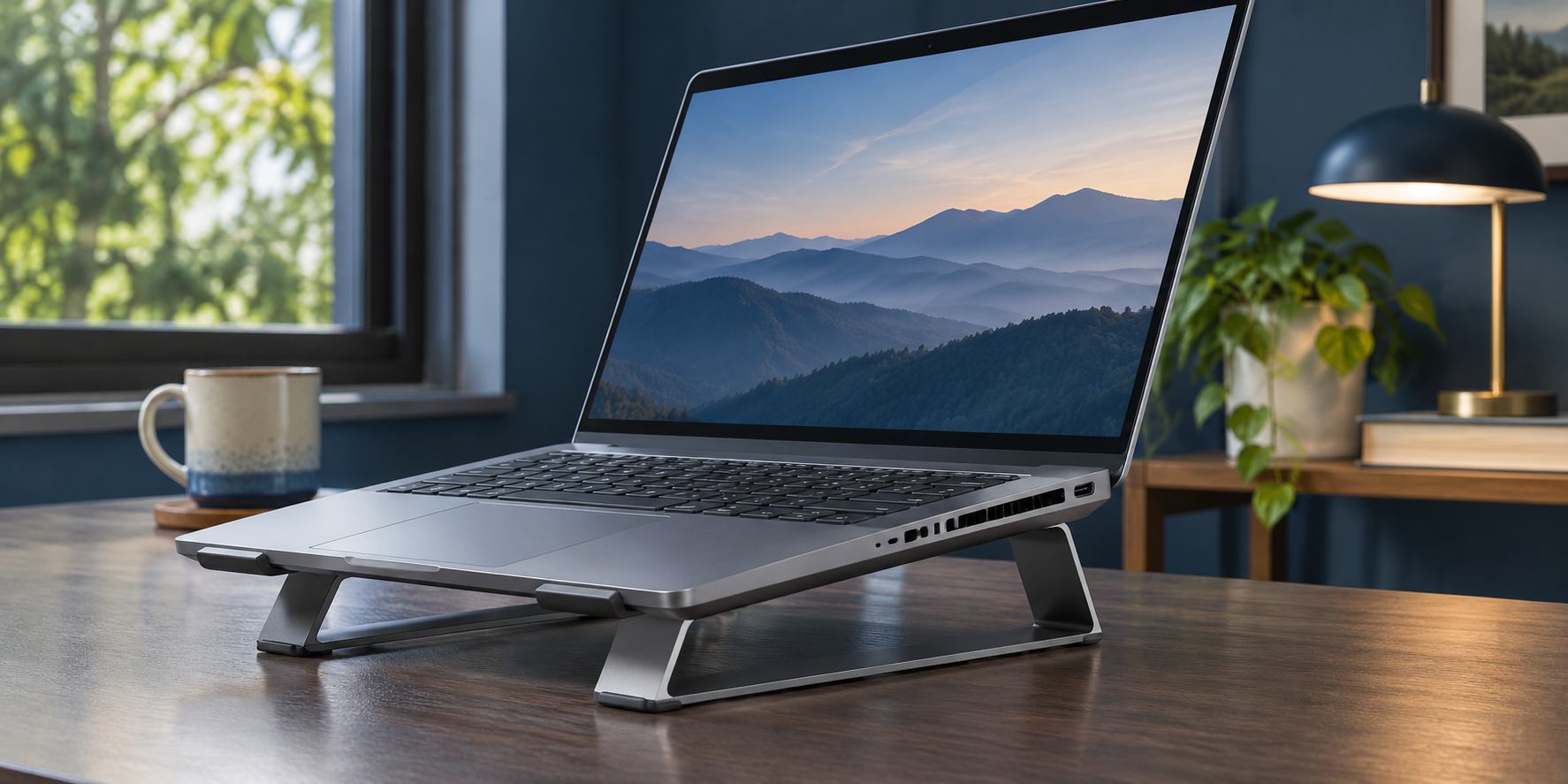
Locate the actual intake and exhaust openings in the model documentation. Some laptops draw air from below and exhaust at a side or hinge; others use a different path or have no fan. A stand helps only if it leaves those openings unobstructed and holds the machine securely. Do not assume that raising a laptop by a few centimetres fixes a clogged heatsink.
HP’s notebook heat guidance recommends a hard, level surface and attention to vents and fans. Test the same ordinary task after changing the surface. If the symptom disappears, you have found a useful operating change. If it persists, keep investigating instead of stacking on accessories.
Look for a workload that explains the fan
Open the operating system’s activity monitor while the laptop is warm. Check whether a game, video call, browser tab, update or background process is using the CPU, GPU or memory. Save your work before closing an application. A busy process may be legitimate; ending every unfamiliar item can interrupt an update or security tool.
On Windows, Microsoft’s performance guide explains how Task Manager helps identify resource use. On a Mac, Apple’s temperature guidance points to Activity Monitor when fans run unexpectedly. Check again after the process completes or after a normal restart. If a process repeatedly returns and consumes resources while idle, use supported updates and security diagnostics to investigate it.
Compare the laptop while plugged in and unplugged, since performance settings may differ. If a demanding workload is expected, reduce settings or schedule it where the laptop has clear airflow. Do not disable protective thermal controls or force fans to stay off to make a device quieter. A laptop that slows under normal tasks may need maintenance, diagnosis or a different machine for the job.
Clean vents carefully, not aggressively
Shut the computer down and disconnect power before cleaning. Check the manufacturer’s instructions for the accessible vent locations and approved method. Remove loose dust from the exterior with a suitable soft tool or air method only if the maker permits it. Keep liquids, household sprays and improvised probes out of openings.
Dust inside the fan or heatsink may require disassembly. Do not open the chassis solely on the strength of a generic video: fasteners, battery connections and warranty terms differ by model. A fan that rattles, stops or reports an error should be inspected rather than covered by a louder desk fan. Dell’s troubleshooting instructions include model diagnostics and escalation when simple steps fail.
After any permitted exterior cleaning, repeat the same task under similar conditions. If the fan and performance return to normal, keep the vents clear as a maintenance habit. If the machine still shuts down or shows a hardware error, record the symptom and seek qualified service. Cleaning is a diagnostic step, not proof that every internal cooling part is healthy.
Use a stand or cooling pad for the right reason
A stable stand can create space under a laptop and improve the working angle. Check that its supports do not cover the intake, press on a thin case or let the computer slide. If you use an external keyboard or monitor, a stand may also make a desk layout more comfortable. These are practical benefits even when no temperature change has been measured.
A powered cooling pad adds fans, cables and noise. Its effect depends on how its airflow aligns with the laptop’s vents, the room temperature and the workload. We have not measured a universal reduction, and a pad cannot repair a failed internal fan or a swollen battery. Our cooling-pad comparison explains fit, size and power checks before buying.
Do not put ice, frozen packs or wet cloths against the machine. Condensation and liquid are poor tradeoffs for a temporary cool surface. Similarly, an external fan blowing across a desk should not be used as a reason to ignore repeated thermal shutdowns. If the laptop only works while an improvised cooler is aimed at it, investigate the fault.
Know when to stop and get service
Repeated shutdowns, unexpected throttling during light work, a fan that fails a manufacturer diagnostic, burning odor or physical deformation need more than desk adjustments. Back up important files if it is safe to do so, then stop using a device that appears damaged. Tell the service provider exactly when the symptom occurs and what checks you have already made.
A bulging case, lifted trackpad or suspected battery expansion is a separate safety concern. Microsoft’s battery-care guidance says to stop using a battery that expands beyond its enclosure and to avoid pressure or puncture. Do not keep charging it to finish a temperature test. Arrange qualified assessment and follow the maker’s handling advice.
If repair is quoted, compare it with the machine’s remaining software support and your actual workload. Our laptop lifespan guide provides a repair-or-replace worksheet. Normal warmth is not a reason to discard a working machine, while a serious warning sign is not a reason to buy a cooling accessory first.
Laptop cooling questions
Is a warm laptop always overheating?
No. Warmth and changing fan speed can be normal under load. Watch for a new pattern, performance loss, repeated shutdowns, fan errors or physical changes. Follow model-specific guidance rather than one universal temperature number.
Is it safe to use a laptop on a bed?
Soft bedding can cover intake vents and retain heat. Use a stable hard tray or desk that leaves the model’s ventilation path clear. Do not let a running laptop disappear under a blanket or pillow.
Will a cooling pad fix thermal shutdowns?
It may change airflow for some setups, but repeated shutdowns need diagnosis. Check surface, vents, workload and manufacturer diagnostics. A pad will not repair a failed fan, blocked internal heatsink or battery fault.
Should I open the laptop to clean the fan?
Only follow the service instructions and safety steps for the exact model if you have the appropriate competence. Otherwise ask a qualified repair provider. Exterior vent cleaning and internal disassembly are different jobs.
Why is the fan loud when I am doing nothing?
Background updates, browser tabs or an errant process can create load. Check the activity monitor and restart normally. If the fan remains loud at idle or reports an error, use the manufacturer’s diagnostics or service support.
How this guide was prepared
We explain documented features and practical considerations using research-based guidance. We do not claim to have tested a device unless a test is specifically documented. Check manufacturer instructions, compatibility and current retailer terms before acting.