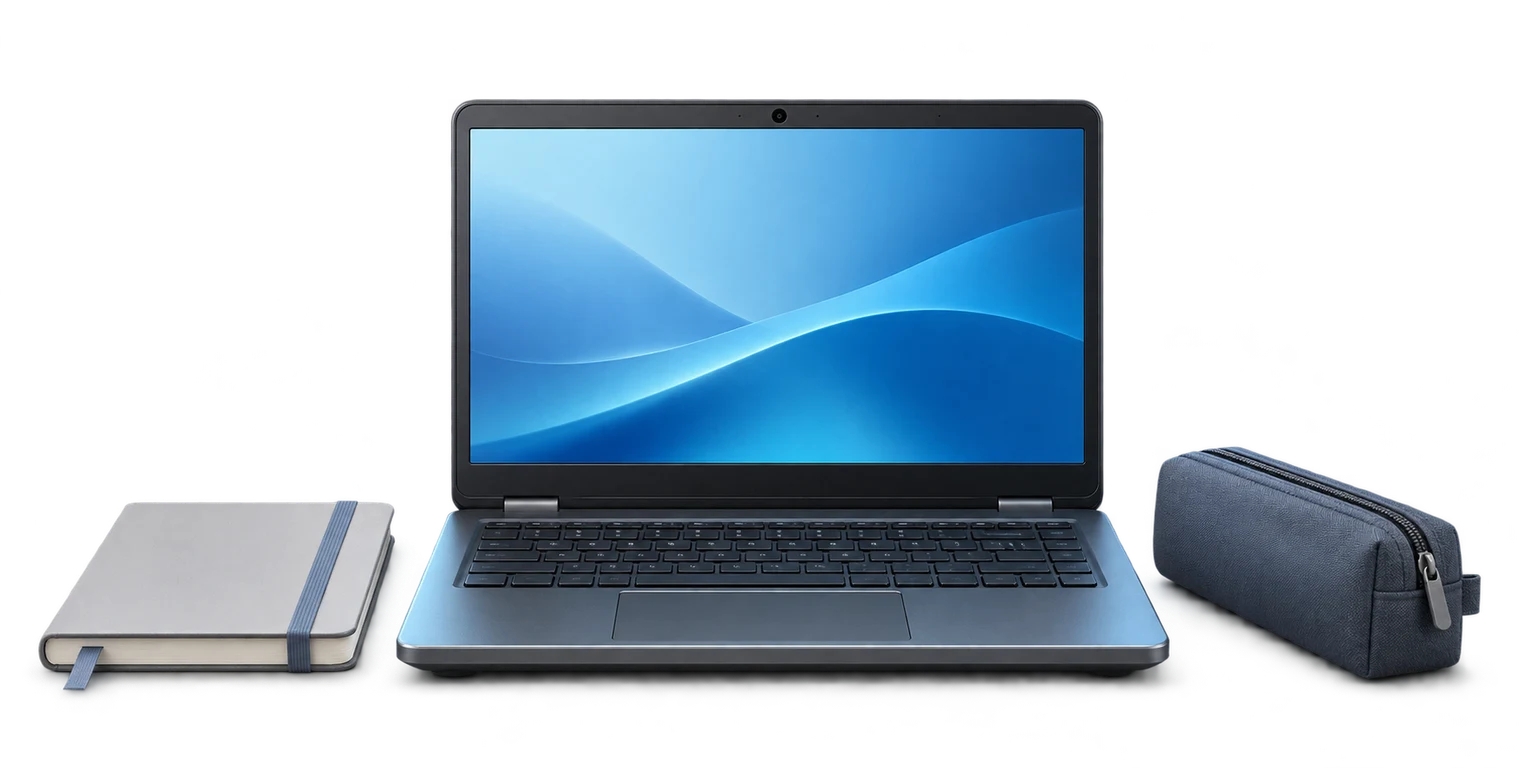
The short answer.
Ask the school which software and accounts are required before choosing a laptop. Then compare a supported device with enough capability for those tasks, a suitable carrying setup and clear family rules.
Get the school requirements first
Ask whether the school requires Windows, ChromeOS or another platform, and whether examinations or specialist applications have specific requirements. Check whether a device is already supplied or whether personal devices can join the school system.
Do not assume every web-based lesson works identically on every platform. Account restrictions and required extensions can matter. Write down the requirements before comparing colors, sale prices or gaming features.
Choose the configuration for the workload
Basic browser work, video calls and documents need a different configuration from coding, creative applications or games. Compare the actual memory, storage and processor in the selected offer. Leave room for the tasks the child will realistically do.
Our kids laptop comparison describes selected options and their limitations. A low price can involve limited memory or storage. Check those compromises directly rather than assuming every model in a family has the same specification.
Check support and carrying needs
For a Chromebook, review Google automatic update information for the exact model. For other systems, check supported software and manufacturer guidance. Older stock can have a different remaining support horizon from a newly released device.
Consider the complete bag weight, charger and protective case. A small display does not guarantee a light computer. Confirm the case internal dimensions and teach the child to keep heavy accessories from pressing against the screen.
Set up accounts together
Use an age-appropriate account arrangement and discuss what the controls do. Google Family Link guidance for Chromebooks explains supported supervision features and the role of school-managed accounts. The available controls depend on the platform and account setup.
Agree on device use, downloads and what to do when something uncomfortable appears. Controls are a support tool, not a guarantee of safety or a replacement for conversation. Respect the child's growing privacy and explain any monitoring clearly.
Test the real school routine during the return window
Sign in to the required school services, join a test call and open typical assignments. Check the keyboard, camera, Wi-Fi and charging arrangement. Confirm that the child can carry and use the computer comfortably.
Keep purchase records and set up a simple backup habit for important work. If the device will serve several school years, reassess its usefulness as requirements change. Our student laptop guide and compact laptop guide offer further comparisons.
Translate school requirements into a device shortlist
Ask the school for the required platform, exam software, account type and any rules for personal devices. Check whether a managed device is already provided. A web page that opens on one laptop may rely on a browser extension, camera permission or local application unavailable on another platform. Make a written list before comparing prices. Include the child's age, carrying distance and whether the machine will be shared at home. Our student laptop guide helps with the broader specification decision, but the school's current requirements should decide compatibility.
Choose enough memory and storage for the actual workload, then check keyboard size, screen legibility, webcam and Wi-Fi. Avoid paying for gaming features that do not help with schoolwork unless the family intentionally wants them.
Plan support, accounts and repairs together
Check the update-support date for a Chromebook model using Google's automatic-update information. For Windows or another platform, check current operating-system support and manufacturer warranty. A low purchase price can be costly if a battery or charger is hard to replace. Look for a robust case and a bag that fits without pressing on the screen. Keep a backup route for assignments, especially if the laptop will travel daily.
Set up the child's account with them. Explain password care, downloads and what to do when a site or message is uncomfortable. Google's family-account guidance describes supported Chromebook controls; school-managed accounts may behave differently. A control panel is not a substitute for conversation and a clear family routine.
Use the return window for a real school test
Sign in to the school portal, open a typical assignment, join a test video call and upload a file. Check the microphone, camera, headphones, keyboard and charging setup. Ask the child to carry the packed laptop for a normal school journey, if appropriate. A device can pass a specification checklist yet be too heavy or awkward for daily use. Record any connectivity problem and test the same task on another network before blaming the machine.
Keep the receipt and warranty details, label the charger and set a regular backup habit. Agree where the laptop is stored and charged at home. Revisit the setup as school software and the child's needs change rather than assuming one purchase will fit every future year.
Common questions
Is a Chromebook enough for school?
It can be when the school supports its apps and account setup. Ask for the exact required software and exam rules first. A low price does not help if a mandatory application needs another platform.
How much memory does a child need?
Base the choice on the school's tasks, browser use and intended lifespan. Compare actual models and whether memory can be upgraded. Avoid a blanket number without knowing the workload.
Should I buy a gaming laptop for a child?
Only if gaming performance is an intentional family requirement and the extra cost, weight, heat and battery impact are acceptable. School tasks alone rarely establish that need.
What parental controls should I enable?
Use the platform's supported family tools and the school's account guidance, then explain the rules to the child. Controls vary by account type and do not replace supervision, conversation and privacy respect.
How this guide was prepared
We explain documented features and practical considerations using research-based guidance. We do not claim to have tested a device unless a test is specifically documented. Check manufacturer instructions, compatibility and current retailer terms before acting.